2020년 6월 5일 금요일

Jetson Nano - DE⫶TR: End-to-End Object Detection with Transformers

On May 27, 2020, Facebook announced a new framework called DETR, (DEtection TRansformer). The computer vision area is very important in edge AI computing. I have also introduced many Pose Estimation and Object Detection models available in the Jetson series.

Transformers are a deep learning architecture that has gained popularity in recent years, particularly on problems with sequential data such as natural language processing (NLP) tasks like language modelling and machine translation.
Transformers have also been extended to tasks such as speech recognition, symbolic mathematics, and reinforcement learning. However, in the computer vision field, the model using Transformer is the first DeTR released by Facebook.

To be honest, I have no deep knowledge of deep learning theory. And I don't want to discuss the structure of DeTR in this article. My interest is what DeTR does in the Edge AI computing. It is this picture that draws my attention.


DETR has a much simpler structure than R-CNN, which was used for traditional object recognition. As the structure is simple, it can be predicted that the processing speed will also increase. In Edge AI computing, processing speed is a very important part. Improving processing speed through the use of lightweight models on edge devices that do not have sufficient computing power and GPUs, such as the Jetson Nano, is an important factor in deciding whether or not a model can be used.

Facebook researchers who unveiled the DETR model say that DETR is similar to Fast-RCNN. However, there is a drawback in that the recognition rate for small images is low.

“Current detectors required several years of improvements to cope with similar issues, and we expect future work to successfully address them for DETR,” the paper authors wrote.

I think these shortcomings will be gradually overcome in the future. DETR is an object recognition model with a completely different structure than before, so it is a model that many AI experts are interested in. Therefore, a model of improved performance at a rapid speed may be continuously released.

The official paper on DETR can be found at https://arxiv.org/pdf/2005.12872.pdf. And the github page is https://github.com/facebookresearch/detr.


Prerequisites


DETR requires PyTorch 1.5. To use PyTorch 1.5 on Jetson Nano, JetPack 4.4 or later is required. How to install JetPack 4.4 and PyTorch 1.5 was introduced in a previous blog. See the previous blog and prepare JetPack 4.4 and PyTorch 1.5 in advance.
Currently (2020.06.05) I am using JetPack 4.4 Developer Preview (DP) Version.

Models

Facebook offers already built DETR models. The following are the models introduced on github.These models can be downloaded in advance and used in real time. If the current user account is root, real-time download stores the model in /root/.cache/torch/hub/facebookresearch_detr_master.

Model Zoo

We provide baseline DETR and DETR-DC5 models, and plan to include more in future. AP is computed on COCO 2017 val5k, and inference time is over the first 100 val5k COCO images, with torchscript transformer.


name backbone schedule inf_time box AP url size
0 DETR R50 500 0.036 42.0 download 159Mb
1 DETR-DC5 R50 500 0.083 43.3 download 159Mb
2 DETR R101 500 0.050 43.5 download 232Mb
3 DETR-DC5 R101 500 0.097 44.9 download 232Mb

COCO val5k evaluation results can be found in this gist.

COCO panoptic val5k models:


name backbone box AP segm AP PQ url size
0 DETR R50 38.8 31.1 43.4 download 165Mb
1 DETR-DC5 R50 40.2 31.9 44.6 download 165Mb
2 DETR R101 40.1 33 45.1 download 237Mb

The models are also available via torch hub, to load DETR R50 with pretrained weights simply do:

model = torch.hub.load('facebookresearch/detr', 'detr_resnet50', pretrained=True)


Using models in the github repo

The torch.hub.load function fetches the model in real time from the github repo. Using this function saves the model in the /root/.cache/torch/hub/facebookresearch_detr_master directory. Once downloaded, the second call uses the already downloaded model.

Let's take a quick look at the torch.hub.load function.

torch.hub.load(github, model, *args, **kwargs)[source]

Load a model from a github repo, with pretrained weights.

Parameters
  • github (string) – a string with format “repo_owner/repo_name[:tag_name]” with an optional tag/branch. The default branch is master if not specified. Example: ‘pytorch/vision[:hub]’

  • model (string) – a string of entrypoint name defined in repo’s hubconf.py

  • *args (optional) – the corresponding args for callable model.

  • force_reload (bool, optional) – whether to force a fresh download of github repo unconditionally. Default is False.

  • verbose (bool, optional) – If False, mute messages about hitting local caches. Note that the message about first download is cannot be muted. Default is True.

  • **kwargs (optional) – the corresponding kwargs for callable model.

Returns

a single model with corresponding pretrained weights.

Example

>>> model = torch.hub.load('pytorch/vision', 'resnet50', pretrained=True)

We will use'facebookresearch/detr' as the first parameter. Given that this value is github, it can be interpreted as github.com/facebookresearch/detr. In other words, it will be the name of the official github site of the DETR mentioned earlier.
The second parameter is the model name, and the values ​​of detr_resnet50, detr_resnet50_dc5, detr_resnet101, detr_resnet101_dc5, ... can be used.  How do you know these values?  These values ​​are answered in the hubconf.py file on the github page. The github that provides the repo must provide this file. If you open this file, you can see the code to find where the actual model file (pth) file is stored and downlaod the model if not exists on the .cache directory. using the name of each model.


Test DETR

Yannic Kilcher made an excellent sample codes. You can find his jupyter notebook codes at https://colab.research.google.com/drive/1Exoc3-A141_h8GKk-B6cJxoidJsgOZOZ?usp=sharing.

And you can find his Youtube video at https://youtu.be/LfUsGv-ESbc.


I modified Yannic Kilcher's code to improve the inference image size and network model selection. And the performance was output on the image.


import torch as th
import torchvision
import torchvision.transforms as T
import requests, sys, time, os
from PIL import Image, ImageDraw, ImageFont
import argparse
import gc 

print('pytorch', th.__version__)
print('torchvision', torchvision.__version__)

parser = argparse.ArgumentParser()
parser.add_argument('--file', type=str, default="", help='filename to load')
parser.add_argument('--model', type=str, default="resnet50", help='network model -> resnet50 or resnet101 or resnet50_dc5 or  resnet50_panoptic')
parser.add_argument("--size", type=str, default='300X200', help="inference size")
parser.add_argument("--threshold", type=float, default=0.7, help="minimum detection threshold to use") args = parser.parse_args() ''' #if you want to view supported models, use these codes. name = th.hub.list('facebookresearch/detr'); print(name) ''' if args.model == 'resnet50': model = th.hub.load('facebookresearch/detr', 'detr_resnet50', pretrained=True) elif args.model == 'resnet50_dc5': model = th.hub.load('facebookresearch/detr', 'detr_resnet50_dc5', pretrained=True) elif args.model == 'resnet50_dc5_panoptic': model = th.hub.load('facebookresearch/detr', 'detr_resnet50_dc5_panoptic', pretrained=True) elif args.model == 'resnet50_panoptic': model = th.hub.load('facebookresearch/detr', 'detr_resnet50_panoptic', pretrained=True) elif args.model == 'resnet101': model = th.hub.load('facebookresearch/detr', 'detr_resnet101', pretrained=True) elif args.model == 'resnet101_dc5': model = th.hub.load('facebookresearch/detr', 'detr_resnet101_dc5', pretrained=True) elif args.model == 'resnet101_dc5_panoptic': model = th.hub.load('facebookresearch/detr', 'detr_resnet101_dc5_panoptic', pretrained=True) elif args.model == 'resnet101_panoptic': model = th.hub.load('facebookresearch/detr', 'detr_resnet101_panoptic', pretrained=True) else: print('Unknown network name[%s]'%(args.model)) sys.exit(0) model.eval() model = model.cuda() print('model[%s] load success'%args.model) transform = T.Compose([ T.ToTensor(), T.Normalize([0.485, 0.456, 0.406], [0.229, 0.224, 0.225]) ]) CLASSES = [ 'N/A', 'person', 'bicycle', 'car', 'motorcycle', 'airplane', 'bus', 'train', 'truck', 'boat', 'traffic light', 'fire hydrant', 'N/A', 'stop sign', 'parking meter', 'bench', 'bird', 'cat', 'dog', 'horse', 'sheep', 'cow', 'elephant', 'bear', 'zebra', 'giraffe', 'N/A', 'backpack', 'umbrella', 'N/A', 'N/A', 'handbag', 'tie', 'suitcase', 'frisbee', 'skis', 'snowboard', 'sports ball', 'kite', 'baseball bat', 'baseball glove', 'skateboard', 'surfboard', 'tennis racket', 'bottle', 'N/A', 'wine glass', 'cup', 'fork', 'knife', 'spoon', 'bowl', 'banana', 'apple', 'sandwich', 'orange', 'broccoli', 'carrot', 'hot dog', 'pizza', 'donut', 'cake', 'chair', 'couch', 'potted plant', 'bed', 'N/A', 'dining table', 'N/A', 'N/A', 'toilet', 'N/A', 'tv', 'laptop', 'mouse', 'remote', 'keyboard', 'cell phone', 'microwave', 'oven', 'toaster', 'sink', 'refrigerator', 'N/A', 'book', 'clock', 'vase', 'scissors', 'teddy bear', 'hair drier', 'toothbrush' ] COLORS = [(0, 45, 74, 127), (85, 32, 98, 127), (93, 69, 12, 127), (49, 18, 55, 127), (46, 67, 18, 127), (30, 74, 93, 127)] tmp = args.size.split('X') W = int(tmp[0]) H = int(tmp[1])

 if args.file == '': url = 'https://i.ytimg.com/vi/vrlX3cwr3ww/maxresdefault.jpg' img = Image.open(requests.get(url, stream=True).raw).resize((W,H)).convert('RGB') filename = 'maxresdefault' else: img = Image.open(args.file).convert('RGB') filename = os.path.splitext(os.path.basename(args.file))[0] W, H = img.size print('Image load success') img_tens = transform(img).unsqueeze(0).cuda() count = 0 tfps = 0 fnt = ImageFont.truetype('/usr/share/fonts/truetype/dejavu/DejaVuSansMono.ttf', 16) fnt2 = ImageFont.truetype('/usr/share/fonts/truetype/dejavu/DejaVuSans-Bold.ttf', 30) for i in range (2): fps_time = time.perf_counter() th.cuda.empty_cache() gc.collect() with th.no_grad(): output = model(img_tens) fps = 1.0 / (time.perf_counter() - fps_time) print("Net FPS: %f" % (fps)) if i > 0: tfps += fps count += 1 im2 = img.copy() drw = ImageDraw.Draw(im2, 'RGBA') pred_logits=output['pred_logits'][0] pred_boxes=output['pred_boxes'][0] color_index = 0 for logits, box in zip(pred_logits, pred_boxes): m = th.nn.Softmax(dim=0) prob = m(logits) top3 = th.topk(logits, 3) if top3.indices[0] >= len(CLASSES) or prob[top3.indices[0]] < args.threshold: continue print(' ===== print top3 values =====') print('top3', top3) print('top 1: Label[%-20s] probability[%5.3f]'%(CLASSES[top3.indices[0]], prob[top3.indices[0]] * 100)) if top3.indices[1] < len(CLASSES) : print('top 2: Label[%-20s] probability[%5.3f]'%(CLASSES[top3.indices[1]], prob[top3.indices[1]] * 100)) if top3.indices[2] < len(CLASSES) : print('top 3: Label[%-20s] probability[%5.3f]'%(CLASSES[top3.indices[2]], prob[top3.indices[2]] * 100)) cls = top3.indices[0] label = '%s-%4.2f'%(CLASSES[cls], prob[cls] * 100 ) #print(label) box = box.cpu() * th.Tensor([W, H, W, H]) x, y, w, h = box x0, x1 = x-w//2, x+w//2 y0, y1 = y-h//2, y+h//2 color = COLORS[color_index % len(COLORS)] color_index += 1 #drw.rectangle([x0, y0, x1, y1], outline='red', width=5) drw.rectangle([x0, y0, x1, y1], fill = color) drw.text((x, y), label, font=fnt,fill='white') fps = 1.0 / (time.perf_counter() - fps_time) print("FPS: %f" % (fps)) output = None th.cuda.empty_cache() print('Processing success') if count > 0: print('AVG FPS:%f'%(tfps / count)) drw.text((5, 5), 'FPS-%4.2f'%(tfps / count), font=fnt2,fill='green') im2.save("./%s-%s.png"%(filename, args.model))
<detr.py>


I've said it many times, always the first recognition right after model loading is slow.
When I ran the code, I encounter the terrible output"Segmentation fault (core dumped)".


Since this error occurs at the end of the program after all the Python code has been executed, it is not a severe problem, and can ignore it. But I will try to find the cause.
I used gdb to find the reason. 


Segmentation fault comes from "libcudnn_ops_infer.so.8.0.0".After several Google search, I found something that could be a clue at https://forums.developer.nvidia.com/t/agx-xavier-segmenation-fault-on-deepstream-people-detection-flowtron/125088.

If you read this, it is likely that this error is from Jetpack 4.4 DP L4T 32.4.2. This error message is said to be being identified by the NVidia internal team. Perhaps this problem can be solved in the JetPack 4.4 full version(not DP version). If this problem is resolved, you can check on the above page.

Run the code!

python3 detr.py --file='./maxresdefault.jpg'


This image is the result of resnet50 model.

<maxresdefault-resnet50.jpg>


Wrapping up

Finally, I compared the performance of resnet50 and resnet101 with several inference sizes.
The average value is applied by repeatedly recognizing the image 10 times.

 Model    Inference Size   
FPS
 Remark
 Resnet101
 300X200 1.820813 Detection Quality is poor
 Resnet101 600X400 0.543098 
 Resnet101 800X600 0.432346 
 Resnet50 300X200 2.553107 Detection Quality is poor
 Resnet50 600X400 1.082547 
 Resnet50 800X600 0.726071 

I tried to implement DETR in Pytorch on the Jetson Nano, but the performance is unreasonable for real system. However, since DETR is expected to have a lot of performance improvement in the future, please keep an eye on it.

Sooner or later, I will add content that compares accuracy and performance with other object detection models.

You can download the source code at https://github.com/raspberry-pi-maker/NVIDIA-Jetson .


2020년 6월 3일 수요일

Jetson Nano - JetPack 4.4 DP and Pytorch 1.5.0 installation

last updated 2020.07.10 : update for Jetpack 4.4 Production Version
New Jetpack 4.4 production version and PyTorch 1.6 installation is explained at  https://spyjetson.blogspot.com/2020/07/jetson-nano-jetpack-44production.html


Pytorch has been upgraded to version 1.5. Therefore, PyTorch, which can be used in Jetson Nano, has also been upgraded to 1.5.0. In the Jetson series, you must use PyTorch, which is provided by NVidia, to properly utilize the cuda.


However, from PyTorch 1.5, it can be installed only on JetPack 4.4 DP(Developer Preview) or higher. Therefore, prepare the JetPack 4.4 SD card image before proceeding with the PyTorch installation.


JetPack 4.4 DP Installation

Make SD Card

Download the SD Card image from the https://developer.nvidia.com/embedded/downloads.


<https://developer.nvidia.com/embedded/downloads>

After downloading the image file(nv-jetson-nano-sd-card-image-r32.4.2.zip), burn a SD Card image of JetPack 4.4 DP using Echer. If you use Echer, you don't have to unzip the zip image file. Just select the zip file as an image file. It is recommended to prepare an SD card with a storage space of 64 GB or more.

Headless setup

Now it's time to setup the Jetson Nano. And I would not use a monitor. I'm going to get it all done at once on a Windows machine.

First, connect the PC and the Jetson Nano with a USB cable.


Insert the SD card with JetPack 4.4 installed.
Next connect the 5V power cable to the Jetson Nano. Jetson Nano will boot now.
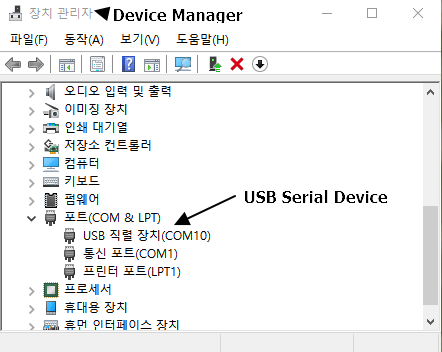
On  your PC, open the "Windows Device Manager" and then, search for serial devices.


You can see that the new serial device is connected as shown above. Jetson Nano is connected on COM10 port.
Now you can access the Jetson Nano with a serial console using a tool like putty.


If everything is fine, the serial console window in the following figure will open.


Now, you can proceed with the setting in the order according to the contents of the screen. The network settings appear at the end of the setting. After completing this setting, you can connect using ssh. If you can't have a ssh connection, you can connect the serial console to the Jetson Nano at any time using a usb cable. And check the ssh configuration. If the ssh service is not running, activate and start the ssh service.

Finally I can connect the Jetson Nano with Jetpack 4.4 using ssh.


PyTorch 1.5.0 Installation

If you have already installed another version of PyTorch on your Jetpack 4.4 SD card, delete the old version first.

Delete old versions of PyTorch

First check pre-installed PyTorch. If there is no PyTorch version already installed, proceed to the next step.

root@spypiggy-nano:/usr/local/src/detr# pip3 freeze|grep torch
torch==1.1.0
torchvision==0.3.0

root@spypiggy-nano:/usr/local/src/detr# pip3 uninstall  torchvision==0.3.0
root@spypiggy-nano:/usr/local/src/detr# pip3 uninstall  torch==1.1.0

Download PyTorch for Jetson Nano

We always use Python 3.X. Therefore, download the whl file that can be used in Python 3.6. And install the necessary packages as follows. JetPack 4.3 and later comes with OpenCV 4.1.1 and numpy. So you don't have to install numpy anymore.

sudo apt-get update
wget https://nvidia.box.com/shared/static/3ibazbiwtkl181n95n9em3wtrca7tdzp.whl -O torch-1.5.0-cp36-cp36m-linux_aarch64.whl sudo apt-get install python3-pip libopenblas-base libopenmpi-dev pip3 install Cython pip3 install torch-1.5.0-cp36-cp36m-linux_aarch64.whl


Download Torchvision for Jetson Nano

If you have successfully installed PyTorch 1.5.0, install Torchvision 0.6.0. The latest version of torchvision can be found at https://github.com/pytorch/vision/releases.

sudo apt-get install libjpeg-dev zlib1g-dev
git clone -b v0.6.0 https://github.com/pytorch/vision torchvision   
cd torchvision
sudo python3 setup.py install
cd ../  
apt-get install libfreetype6-dev
pip3 uninstall pillow
pip3 install --no-cache-dir pillow

Be Careful : You must use python3, pip3 commands. PyTorch 1.5 and later, Python 2 is no longer supported.

Let's check whether the installation is correct.
If you see thescreen like this, the installation is successful.

root@jetpack-4:/usr/local/src/torchvision# python3
Python 3.6.9 (default, Apr 18 2020, 01:56:04)
[GCC 8.4.0] on linux
Type "help", "copyright", "credits" or "license" for more information.
>>> import torch
>>> import torchvision
>>> torch.__version__
'1.5.0'
>>> torchvision.__version__
'0.6.0a0+b68adcf'
>>>

Wrapping up

The reason for installing JetPack 4.4 and PyTorch 1.5.0 is to introduce DEtection TRansformer (DETR), a meaningful object detection related technology released by Facebook. DETR only works with the latest versions of PyTorch, 1.5 and torchvision 0.6 and later. In the next article, I will continue to introduce DETR.


2020년 5월 25일 월요일

Raspberry Pi - Human Pose estimation using Google EdgeTPU

I have been a big fan of the Jetson series for a long time. And I was interested in Pose Estimation, so I introduced various blogs using OpenPose, Tensorflow, PyTorch, TensorRT, etc. In particular, I noticed the Tensorflow Lite example using the Resnet50 model for Pose Estimation. One of my blog posts is about PyTorch using the Resnet50 model. My impression with the Resnet50 model is that the accuracy of this model is quite good. However, it had the disadvantage of being too slow. The Jetson Nano had a disappointing value of 0.2FPS.

<FPS on AMD Ryzen 7 2700X + RTX 2070 + Ubuntu 18.04>

<FPS on Jetson Nano>


Therefore, I have been looking for a ResNet50 model capable of high FPS in the Jetson series. Unfortunately, it was difficult to find an example of recording a high FPS using the Redsnet50 model.
The best Pose Estimation performance of the Jetson Nano was based on the Resnet18 model designed for TensorRT. I introduced this at https://spyjetson.blogspot.com/2019/12/jetsonnano-human-pose-estimation-using.html.

<Pose Estimation using TensorRT on Jetson Nano records 15 FPS>

As you can see from the picture above, it showed good performance over 15 FPS. I haven't yet found a better performing Pose Estimation model on the Jetson Nano.

Tensorflow Lite

However, TensorFlow Lite introduces Pose Estimation using Resnet50. TensorFlow Lite is a lightweight TensorFlow that runs on Android, IOS-equipped smartphones, or ARM-based devices.

On the https://github.com/tensorflow/tfjs-models/tree/master/posenet page, examples that can be tested in the browser using Javascript are introduced. In PoseNet 2.0, you can choose between a lightweight, fast but inaccurate MobileNetV1 model and a large, heavy but highly accurate ResNet50 model.


However, this example uses Javascript and works only in browsers. I need a python example that works at high speed using the Resnet 50 model. Fortunately, there is a Python example using the Google Edge TPU.

This example uses TensorFlow Lite and requires Google EdgeTPU. In this article, we will use Raspberry Pi 4 instead of Netson Nano.

Raspberry Pi 4 + Tensorflow Lite + Edge TPU

EdgeTPU works on USB 3.0. Therefore, it is not recommended to use Raspberry Pi 3.X, which only supports USB 2.0.
First, after installing the Raspbian desktop version OS on the Raspberry Pi 4, install the required software as follows.

Install Rasbian on the Raspberry Pi 4

  1. Download the Rasbian Buster image on the https://www.raspberrypi.org/downloads/raspbian/ and burn the SD Card image.
  2. Run raspi-config to activate the camera
  3. Run the command "apt-get update"
  4. Run the command "apt-get dist-upgrade" and reboot the Raspberry Pi.

Install Coral(EdgeTPU) software

Use the information on the official website https://coral.ai/docs/accelerator/get-started/#requirements

The Coral AI accelerator is not yet connected to the Raspberry Pi.
First, install the Debian packages needed for Coral. The previous two commands add the repo, and the last command reflects the added repo (repository). Therefore, you must install "libedgetpu1-std" after "apt-get update".

echo "deb https://packages.cloud.google.com/apt coral-edgetpu-stable main" | sudo tee /etc/apt/sources.list.d/coral-edgetpu.list
curl https://packages.cloud.google.com/apt/doc/apt-key.gpg | sudo apt-key add -
sudo apt-get update

Install Edge TPU runtime. Edge TPU runtime has two versions, std and max. The max version overclocks the processing unit of the CORAL AI accelerator. Therefore, the processing speed is slightly faster, but the temperature of the accelerator increases instead. It is similar to PC CPU overclocking. If you want to use the max version, install libedgetpu1-max instead of libedgetpu1-std.
The following picture is a YouTube video showing the difference between the two. The Google homepage recommends using the std version. However, Posenet 2.0 may not work properly without using max. So I'm going to install max runtime.


sudo apt-get install libedgetpu1-max

Now connect the Coral AI accelerator to the USB 3.0 port.

Be careful : You can check why you should use max runtime for Resnet50 on the Raspberry at https://github.com/google-coral/project-posenet/issues/31 .

Install TensorFlow Lite

TensorFlow Lite is a lightweight version of the existing TensorFlow that has been improved to use the machine learning model in various mobile environments such as Android, iOS, and embedded systems.
Initially, it was created to operate TensorFlow on a smartphone without an AI-accelerated chip, and the Android and IOS versions were released in November 2017. Since support for Linux systems using ARM32 and ARM64 has been added, it can be used in SBC such as Raspberry Pi, NVidia Jetson series, and Odroid.
TensorFlow Lite converts floating-point numbers to 8-bit integers and processes them, making it possible to process deep learning models relatively quickly. However, the accuracy of the inference result is slightly lowered due to the error due to the integer processing. For reference, the following figure shows the efficiency of parallel processing in the ARM series CPU. It shows that the performance of processing 8-bit integers is 8 times more efficient than processing 64-bit floating-point numbers. Perhaps many devices with TensorFlow Lite installed use ARM CPUs, so this optimization seems to be the case.


First, check the exact Python 3 version of your Raspberry Pi. For reference, version 3.7 of Rasbian Buster is used.

pi@raspberrypi:~ $ python3
Python 3.7.3 (default, Dec 20 2019, 18:57:59) 
[GCC 8.3.0] on linux
Type "help", "copyright", "credits" or "license" for more information.

In the installation command below, cp37 means Python 3.7. Be sure to use the installation file for the version of Python installed on your Raspberry Pi. The https://www.tensorflow.org/lite/guide/python page has a list of available installation files for other versions of Python. If you are using a different version of Python, refer to this page and use the appropriate installation file.

pip3 install https://dl.google.com/coral/python/tflite_runtime-2.1.0.post1-cp37-cp37m-linux_armv7l.whl


Install Posenet 2.0 example

Now it is time to install Posenet. Download the code from https://github.com/google-coral/project-posenet. In addition to PoseNet, https://github.com/google-coral provides examples using EdgeTPU.

sudo apt-get update
sudo apt-get install python3-edgetpu
cd /usr/local/src git clone https://github.com/google-coral/project-posenet.git cd project-posenet/ sudo bash ./install_requirements.sh


Let's check if the installation was successful using the sample example. If the position and score of each part of the human body are shown as follows, it is installed normally.

root@rpi-coral:/usr/local/src/project-posenet# python3 simple_pose.py
--2020-05-25 20:57:19--  https://upload.wikimedia.org/wikipedia/commons/thumb/3/38/Hindu_marriage_ceremony_offering.jpg/640px-Hindu_marriage_ceremony_offering.jpg
Resolving upload.wikimedia.org (upload.wikimedia.org)... 103.102.166.240, 2001:df2:e500:ed1a::2:b
Connecting to upload.wikimedia.org (upload.wikimedia.org)|103.102.166.240|:443... connected.
HTTP request sent, awaiting response... 200 OK
Length: 83328 (81K) [image/jpeg]
Saving to: ‘couple.jpg’

couple.jpg                             100%[=========================================================================>]  81.38K   173KB/s    in 0.5s

2020-05-25 20:57:20 (173 KB/s) - ‘couple.jpg’ saved [83328/83328]

Inference time: 25ms

Pose Score:  0.5861151
 nose                 x=210  y=152  score=1.0
 left eye             x=224  y=138  score=1.0
 right eye            x=199  y=137  score=1.0
 left ear             x=244  y=135  score=1.0
 right ear            x=182  y=129  score=0.8
 left shoulder        x=268  y=168  score=0.8
 right shoulder       x=160  y=174  score=1.0
 left elbow           x=282  y=255  score=0.6
 right elbow          x=154  y=256  score=0.9
 left wrist           x=230  y=287  score=0.6
 right wrist          x=162  y=299  score=0.6
 left hip             x=271  y=317  score=0.1
 right hip            x=169  y=306  score=0.1
 left knee            x=245  y=330  score=0.2
 right knee           x=172  y=336  score=0.0
 left ankle           x=182  y=411  score=0.1
 right ankle          x=184  y=413  score=0.1

Pose Score:  0.5533377
 nose                 x=398  y=145  score=1.0
 left eye             x=416  y=128  score=1.0
 right eye            x=382  y=127  score=1.0
 left ear             x=457  y=110  score=0.9
 right ear            x=370  y=120  score=0.2
 left shoulder        x=492  y=169  score=0.9
 right shoulder       x=362  y=150  score=0.8
 left elbow           x=463  y=292  score=0.9
 right elbow          x=329  y=245  score=0.8
 left wrist           x=340  y=303  score=0.9
 right wrist          x=236  y=329  score=0.5
 left hip             x=488  y=306  score=0.2
 right hip            x=370  y=318  score=0.1
 left knee            x=472  y=303  score=0.0
 right knee           x=252  y=327  score=0.2
 left ankle           x=450  y=373  score=0.1
 right ankle          x=184  y=410  score=0.1

However, the simple_pose.py example is a bit insufficient because it only shows the values ​​in the console output. Let's improve the source code a bit to show a new result image.
Packages that are frequently used for image processing are Pillow and OpenCV. Learning the basics of using these two packages can be a great help in working with images.

I used PIL's ImageDraw to add the point and text of the body part location PoseNet found to the image and then saved it to the couple_mobilenet.jpg or couple_resnet.jpg file.

import os
import numpy as np
from PIL import Image, ImageDraw
from pose_engine import PoseEngine
import argparse

parser = argparse.ArgumentParser(description='PoseNet')
parser.add_argument('--model', type=str, default='mobilenet')
args = parser.parse_args()

os.system('wget https://upload.wikimedia.org/wikipedia/commons/thumb/3/38/'
          'Hindu_marriage_ceremony_offering.jpg/'
          '640px-Hindu_marriage_ceremony_offering.jpg -O couple.jpg')
pil_image = Image.open('couple.jpg')

if(args.model == 'mobilenet'):
    pil_image.resize((641, 481), Image.NEAREST)
    engine = PoseEngine('models/mobilenet/posenet_mobilenet_v1_075_481_641_quant_decoder_edgetpu.tflite')
else:
    pil_image.resize((640, 480), Image.NEAREST)
    engine = PoseEngine('models/resnet/posenet_resnet_50_640_480_16_quant_edgetpu_decoder.tflite')
    
poses, inference_time = engine.DetectPosesInImage(np.uint8(pil_image))
print('Inference time: %.fms' % inference_time)

output = pil_image.copy()
draw = ImageDraw.Draw(output)
for pose in poses:
    if pose.score < 0.4: continue
    print('\nPose Score: ', pose.score)
    for label, keypoint in pose.keypoints.items():
        print(' %-20s x=%-4d y=%-4d score=%.1f' %
              (label, keypoint.yx[1], keypoint.yx[0], keypoint.score))
        p1 = (keypoint.yx[1], keypoint.yx[0])
        p2 = (keypoint.yx[1] + 5, keypoint.yx[0] + 5)
        draw.ellipse([p1, p2], fill=(0,255,0,255))
        draw.text((keypoint.yx[1] + 10,keypoint.yx[0] - 10), label,  fill=(0,255,0,128))
        
output.save('./couple_' + args.model + '.jpg') 
<simple_pose2.py>

Now run the new python code. As you can see, there's a new couple_pose.jpg file.

root@rpi-coral:/usr/local/src/project-posenet# python3 simple_pose2.py
...
root@rpi-coral:/usr/local/src/project-posenet# ls -al couple*
-rw-r--r-- 1 root root 83328 Feb  9  2016 couple.jpg
-rw-r--r-- 1 root root 77164 May 25 21:23 couple_mobilenet.jpg

<couple_mobilenet.jpg>


If you want to use the Resnet model, use --model=resnet options.

PoseNet 2.0 test using camera

Now that you have verified that PoseNet is working, you need to check the performance using the camera. Personally, if the performance exceeds 10FPS, I believe that the model is usable.
The camera examples provided by project-posenet use gstreamer and svgwriter. However, I have done most of the camera examples before using OpenCV. Therefore, we will change this example to be easier to use using OpenCV.
Since I am using a remote ssh without using a monitor, I used a video output video instead of a screen output If you are using a local monitor, you can change it to screen output using the cv2.imshow function.


import argparse
import time
import math
import cv2
import numpy as np
from pose_engine import PoseEngine


def main():
    parser = argparse.ArgumentParser(description='PoseNet')
    parser.add_argument('--model', type=str, default='mobilenet')
    args = parser.parse_args()
    
    if args.model == 'mobilenet':
        model = 'models/mobilenet/posenet_mobilenet_v1_075_353_481_quant_decoder_edgetpu.tflite'
    else:
        model = 'models/resnet/posenet_resnet_50_416_288_16_quant_edgetpu_decoder.tflite'
        
    engine = PoseEngine(model)
    input_shape = engine.get_input_tensor_shape()        
    inference_size = (input_shape[2], input_shape[1])
    print(inference_size)
    cap = cv2.VideoCapture(0)
    fourcc = cv2.VideoWriter_fourcc('m', 'p', '4', 'v')
    out_video = cv2.VideoWriter('./output.mp4', fourcc, cap.get(cv2.CAP_PROP_FPS), inference_size)
    
    cap.set(cv2.CAP_PROP_FRAME_WIDTH, 640)
    cap.set(cv2.CAP_PROP_FRAME_HEIGHT, 480)
    if cap is None:
        print("Camera Open Error")
        sys.exit(0)
    
    count = 0
    total_ftp = 0.0
    fps_cnt = 0
    while cap.isOpened() and count < 60:
        ret_val, img = cap.read()
        if ret_val == False:
            print("Camera read Error")
            break    
        print('frame read')
        img = cv2.resize(img, inference_size)
        rgb = cv2.cvtColor(img, cv2.COLOR_BGR2RGB)
        s_time = time.time()
        poses, inference_time = engine.DetectPosesInImage(rgb)
        fps = 1.0 / (time.time() - s_time)
        total_ftp += fps
        fps_cnt += 1
        for pose in poses:
            print('\nPose Score: %f  FPS:%f'%(pose.score, fps))
            if pose.score < 0.3: continue
            for label, keypoint in pose.keypoints.items():
                print(' %-20s x=%-4d y=%-4d score=%.1f' %(label, keypoint.yx[1], keypoint.yx[0], keypoint.score))
                p1 = (keypoint.yx[1], keypoint.yx[0])
                p2 = (keypoint.yx[1] + 5, keypoint.yx[0] + 5)
                cv2.circle(img, (keypoint.yx[1], keypoint.yx[0]), 5, (0,255,0), -1)

        out_video.write(img)                
        count += 1
    if fps_cnt > 0:   
        print('Model[%s] Avg FPS: %f'%(args.model, total_ftp / fps_cnt))
    cv2.destroyAllWindows()        
    cap.release()    
    out_video.release()
    
if __name__ == '__main__':
    main()

The input image size of the network model is (481, 353) for mobilenet and (416,288) for resnet. .

First is the test result using the mobilenet model.

root@rpi-coral:/usr/local/src/project-posenet# python3 pose_camera_cv.py
......
Model[mobilenet] Avg FPS: 120.934394


And the following is a test using resnet50.

root@rpi-coral:/usr/local/src/project-posenet# python3 pose_camera_cv.py  --model=resnet
......
Model[resnet] Avg FPS: 14.966248


<picture from saved video using ResNet50 model>

Wrapping Up

It recorded 120 FPS on MobileNet and about 15 FPS on ResNet50. Since only the time processed by the real network model is recorded, the actual FPS value will be slightly lowered if you include time such as drawing coordinates on the image and writing video files. But even considering this, these values ​​are fantastic.
The Tensorflow Lite model uses 8-bit integer arithmetic instead of floating-point to reduce processing speed and memory usage, and Edge TPU accelerates these operations to record these outstanding values.

The best performance of the Pose Estimation I've introduced so far is the TensorRT and ResNet 18 models, which have a performance of about 15 FPS.

However, it's surprising that the ResNet 50, which is much heavier than the ResNet 18, can provide such good performance.
In the Jetson series, we expect to optimize the ResNet 50 model to make a good performance model.

You can download the source code at https://github.com/raspberry-pi-maker/NVIDIA-Jetson .